
Unable to Connect the myQ Smart Garage Camera to My Home Wi-Fi Network and No LED
When attempting to connect a myQ Smart Garage Camera to your home network, the LED indicator will go through a sequence of flashes before the LED turns solid green to confirm it's connected. Each step of the sequence indicates what the camera is attempting to do and how you approach troubleshooting depends on the LED's behavior and color.
No LED status indicates that the myQ Smart Garage Camera does not have any power.
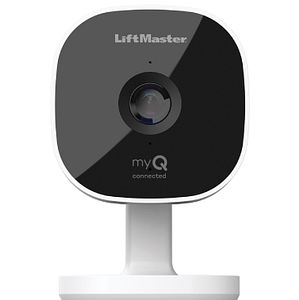
Before you begin:
- Check if the app has provided any Error Codes.
- If so, see: myQ Error Codes and How to Resolve Them.
- A ladder may be required to complete setup.
myQ Smart Garage Camera Has No LED
- Power cycle the myQ Smart Garage Camera by disconnecting then reconnecting the power cord to the camera and to the outlet.
- If the LED goes from solid white to blinking blue, see: How to Set Up the myQ Smart Garage Camera in the myQ App.
- If the LED goes to a solid green LED, your camera is online.
- If there is still no LED, continue to step 2.
- Make sure that the outlet where your myQ Smart Garage Camera is plugged in has power.
- Test the power to the outlet by plugging in a different device to see if it works.
- If there is no power to the outlet, plug the myQ Smart Garage Camera into a different outlet with confirmed power.
- If the camera does not power on, it may need to be replaced.
Note: During the setup process, monitor the status of the LED light on your myQ Smart Garage Camera for any changes. If you are still unable to connect, use the last LED status you saw to troubleshoot further. See Unable to Connect the myQ Smart Garage Camera to Wi-Fi Overview.

Find Help By Product 

View More Brands

