
How to Troubleshoot a myQ Internet Gateway with No LED
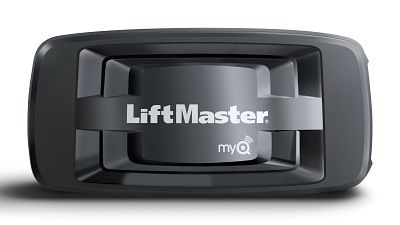
The myQ Internet Gateway needs to be connected to your router using an ethernet cable to access the myQ server. Once the Internet Gateway is connected, it allows you to control compatible residential, commercial, and gate operators through the myQ app.
If the myQ Internet Gateway is not connecting to the server, the issue could be due to the router, modem or Internet connection.
The green LED light on the Internet Gateway shows the status of the Internet connection and can help diagnose any connectivity issues. The LED status can be found on the front of the device on the same side as the myQ branding.
Note: If your myQ Internet Gateway has a flashing green LED and you are able to connect to the internet on your computer or laptop, see How to Troubleshoot a myQ Internet Gateway with a Blinking Green LED.
Things to Consider:
- Verify compatibility per the opener type.
- For residential garage door openers, see myQ Compatibility Chart.
- For commercial and gate operators, see How to Identify Gate and Commercial Door Operators Compatible with myQ Technology.
- The Internet Gateway will not work with Dial-up connections.
- You may have issues connecting using hotel networks.
Troubleshooting No LED on the myQ Internet Gateway
No LED status indicates there is no power going to the device or there is an issue with the ethernet cable connection to the router.
- Disconnect then reconnect the power cord from the AC wall outlet and from the back of the myQ Internet Gateway to ensure power is securely connected.
- If the LED goes to a solid green, the device is online.
- If there is still no LED, continue to step 2.
- Disconnect then reconnect the ethernet cable from the myQ Internet Gateway and from your router.
- If the LED goes to a solid green, the device is online.
- If there is still no LED, continue to step 3.
- Test the outlet power by plugging another appliance into the same outlet and verifying if it powers on.
- If the outlet doesn't work, try a different outlet.
- If the appliance powers on, continue to step 4.
- Determine if you can connect to the Internet using your computer.
- If you are unable to connect to the Internet, contact your Internet Service Provider.
- If you can connect to the Internet, continue to step 5.
- Reset the router and/or modem by unplugging the router for 30 seconds and then plugging it back in.
- If the LED goes solid green, the device is online.
- If there is still no LED, continue to step 6.
- Move the Internet Gateway ethernet cable to another port on the router.
- Make sure that the Internet Gateway is plugged into a LAN port, normally numbered 1-4.
- If the LED goes solid green, the device is online.
- If none of the ports result in a solid green LED, continue to step 7.
- If you are using a modem and a router setup, disconnect the Internet Gateway from the router and plug the Internet Gateway directly into the modem to bypass the router.
- If you only have a router, continue to step 9.
- If applicable, continue to step 8 after connecting the Internet Gateway to the modem.
- Verify if the Internet Gateway connects to your home network when plugged into the modem.
- If your Internet Gateway has a solid green LED, it is online. We recommend checking your router compatibility with the following link: How to determine which routers and modems are incompatible with the Liftmaster or Chamberlain Internet Gateway.
- If your router is compatible and you continue to have connectivity issues plugging the Internet Gateway into your router, contact the manufacturer for additional support. There may be a security setting preventing the Internet Gateway from connecting.
- If you have contacted your internet service provider or router manufacturer to confirm that there are no security settings preventing connection, continue to step 9.
- Perform a Soft Reset on the Internet Gateway.
- This renews the IP address with the router. The LED will blink like a normal power up. To perform a soft reset:
- With a safety pin or paper clip, press and hold the reset button on the side of the Internet Gateway in the recessed hole.
- Hold the button in until you see a yellow LED light blink, then release the button.
- If the soft reset does not result in a solid green LED, continue to step 10.
- This renews the IP address with the router. The LED will blink like a normal power up. To perform a soft reset:
- Perform a factory reset on the Internet Gateway.
- This deletes all the devices and renews the IP address with the router.
- See How to Factory Reset a myQ Device.
- If you continue to have no LED, replace the myQ device.
Note: If your Internet Gateway has a solid green LED, it is connected to our servers. See How to Setup an Internet Gateway in the myQ App for adding your Internet Gateway to an account and/or adding more devices if needed.
See also:


