
How to Troubleshoot a myQ Internet Gateway with a Blinking Green LED
A blinking green LED means that the Internet Gateway is connected to the router but cannot connect to the myQ server. If you have received "Error 308 - Device not responding" or "Error 309 Gateway offline", confirm if the green LED on your Internet Gateway is blinking. If so, follow the steps below to resolve the issue.
The LED status can be found on the front of the device on the same side as the myQ branding.
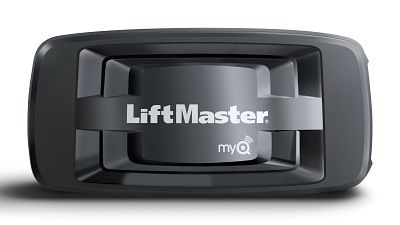
Note: If your Internet Gateway has a solid green LED, it is connected to our servers. See How to Setup an Internet Gateway in the myQ App for adding your Internet Gateway to an account and/or adding more devices if needed.
Troubleshooting a Blinking Green LED on an Internet Gateway
- Restart the Internet Gateway by disconnecting, waiting a few seconds and then reconnecting the power to the Internet Gateway.
- If the LED goes to a solid green, the device is online.
- If the LED is still blinking green, continue to step 2.
- Perform a Soft Reset on the Internet Gateway. This will renew the IP address with the router. The LED will blink like a normal power up.
- With a safety pin or paper clip, press and hold the reset button on the side of the Internet Gateway in the recessed hole.
- Hold the button in until you see a yellow LED light blink, then release the button.
- If the soft reset does not result in a solid green LED, continue to step 3.
- Verify your router settings have the following ports set:
- TCP/UDP port 53 open (DNS).
- Inbound and outbound UDP/TCP port 8883 open.
- If the router settings are in alignment and you continue to experience a blinking green LED, continue to step 4.
- If you're not sure how to do this, contact your Internet Service Provider for help.
- Check to see if IP (Internet Provider) Cameras or DVR systems are being used or have recently been added to your home network.
- If you have any of these devices, we recommend contacting the company that made your DVR or security system and ask them to change the setting in the software from Auto Scan to Manual.
- Sometimes these devices mistake our Internet Gateways for cameras and the DVR or security cameras will block your Gateway from connecting.
- If the green LED continues to blink after verifying and completing the above troubleshooting, contact technical support for further help.
- If you have any of these devices, we recommend contacting the company that made your DVR or security system and ask them to change the setting in the software from Auto Scan to Manual.

Find Help By Product 

View More Brands

