
Smart Garage Hub | Device Shows Offline or Unable to Connect to Wi-Fi
If your myQ Garage Hub, Smart Garage Hub, or Smart Garage Control appears offline in the myQ app, the issue is usually related to power, Wi-Fi, or changes to your home network.
Follow the quick checks below before troubleshooting the LED light on the hub.
Check These First
Before checking the LED Status on the hub, confirm the following:
Identify Your Device Type
Confirm which type of device you have before troubleshooting.
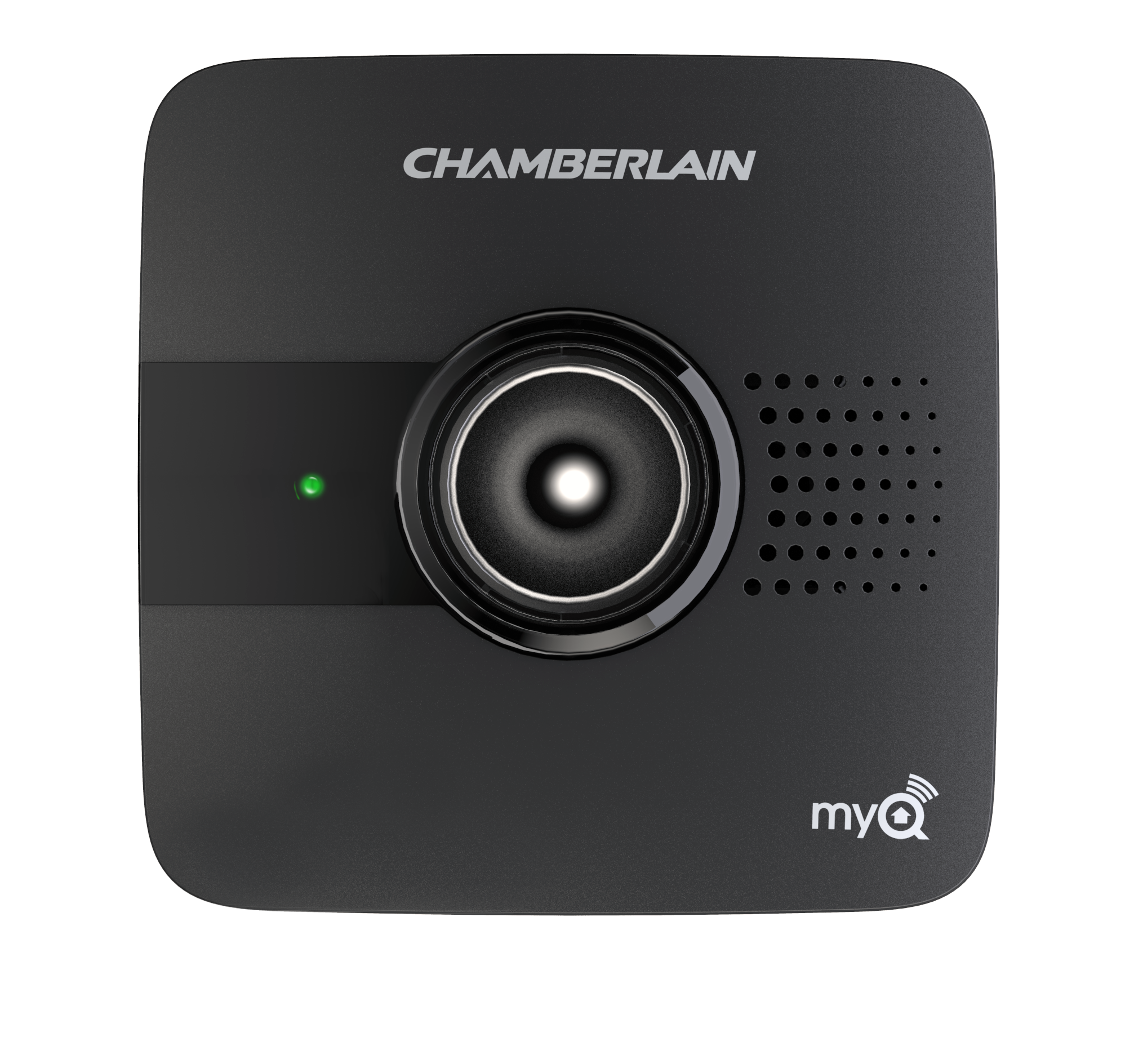
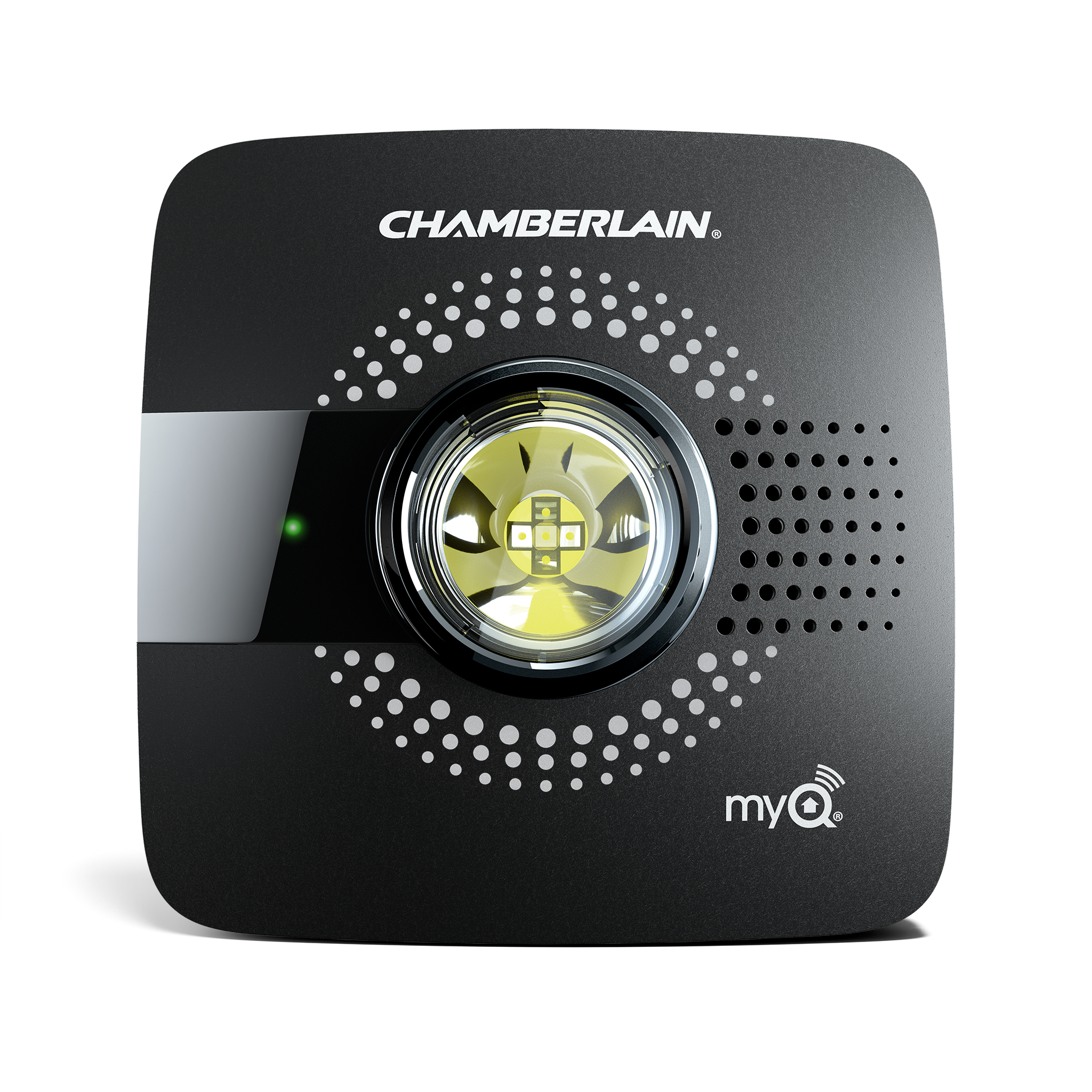
Supported Devices: myQ Smart Garage, myQ Smart Garage Hub, Smart Garage Control
- These devices are separate hubs installed near the garage door opener that add Wi-Fi control to compatible openers.
- Check Compatibility: Make sure your garage door opener is compatible with myQ Garage and myQ Smart Hub.
- If you've confirmed that you have a compatible hub → continue with the next step.
-
If you have a garage door opener with built in Wi-Fi ⓘ
Some garage door openers have Wi-Fi already built into the opener itself. You can tell if your opener has built-in Wi-Fi if:
- There is a Wi-Fi logo or Wi-Fi LED on the opener, usually near the LEARN button.
- There is no separate square hub device installed near the opener.
Built-in Wi-Fi openers do not require a myQ Smart Garage Hub or Smart Garage Control. If your opener has built-in Wi-Fi, follow the Wi-Fi Garage Door Opener | Wi-Fi Troubleshooting Guide.
Confirm the Hub is Added to Your myQ Account
If the hub isn't added to your account, it won't appear in the app.
- If you see your hub listed but showing Offline → Continue troubleshooting below.
- If your hub is not listed → You’ll need to add it to your account: How to Add a Smart Garage Hub to Your myQ Account
Check Power
Make sure the hub is plugged into a working outlet and the LED light on the front of the device is visible.
- Test the outlet with another device if you're unsure.
- If there’s no LED light at all troubleshoot No LED Below
Check Internet and Router
Restart your router or modem.
- Unplug your router or modem for 10–15 seconds, then plug it back in and wait for it to reconnect to the internet.
- Make sure your router is connected to the internet. If you're not sure, contact your internet service provider to troubleshoot or check for an outage.
Check for Recent Network Changes
If you changed your Wi-Fi password, network name (SSID), or installed a new router you’ll need to reset and reconnect your device.- How to Clear the Wi-Fi Settings on a myQ Wi-Fi Device
- How to Reconnect to myQ after Replacing the Router or Changing the Router Settings
Confirm Hub and Door Sensor Placement
Incorrect placement can prevent the hub from completing setup or communicating with the door sensor.
Hub placement guidelines:
- Mount the hub 4–6 feet away from the garage door opener
- Avoid mounting directly on the opener or metal surfaces
- Keep the hub within range of your home Wi-Fi network
ⓘ
The door sensor detects whether the garage door is open or closed and sends that status to the hub. If the sensor is not mounted correctly or cannot communicate with the hub, the device may not complete setup or operate properly in the myQ app.
- Install the sensor on the top panel of the garage door
- Mount the sensor vertically with the logo facing outward
- Make sure the sensor is securely attached and not loose
Troubleshoot by LED Status
If the device still appears offline after completing the checks above, use the LED light on the front of the hub to identify the connection status.
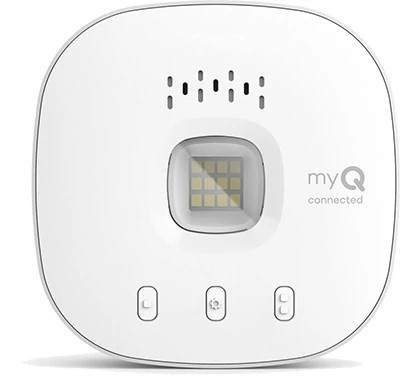
LED Light Location: On the front panel of the hub
Select the LED pattern that matches your device.
How to Fix It ⬇️
Before You Begin:- Check to see if the app has provided any Error Codes.
- If yes, see myQ Error Codes and How to Resolve Them.
- A ladder may be required to complete troubleshooting.
- Disconnect then reconnect the power cord from the electrical outlet and the back of the myQ hub.
- Confirm the status of the LED.
- If the LED is blinking blue, see: Unable to Connect a myQ Smart Garage Hub to Wi-Fi and LED Light Blinking Blue.
- If the LED is solid green, the myQ hub is online. Verify the device is working in the myQ app.
- If there is still no LED, continue to step 3.
- Test the outlet power by plugging another appliance into the same outlet and verifying if it powers on.
- If you are unable to establish power at the outlet, we recommend contacting a certified electrician and trying a different outlet for the myQ device.
- If the hub powers on with a different outlet and does not result in a solid green LED, see: Unable to Connect a Smart Garage Hub to Home Wi-Fi Network Overview.
- If there is still no LED, continue to step 4.
- Perform a factory reset.
- See: How to Factory Reset a myQ Device.
- When the LED begins blinking blue, see: Unable to Connect a Smart Garage Hub to Wi-Fi and LED Light Blinking Blue.
- If the hub continues to not power on, replace the myQ hub.
Video Guide
Unable to Connect a myQ Smart Garage Hub or Smart Control to Wi-Fi and There Is No LED
How to Fix It ⬇️
- Confirm if the app has provided any Error Codes.
- If yes, see: myQ Error Codes and How to Resolve Them.
- A ladder may be required to complete troubleshooting.
- Ensure you have the correct home Wi-Fi network password.
- Ensure you have a strong 2.4GHz Wi-Fi network signal in the garage.
-
Check the Wi-Fi password
- If the password was copied and pasted, try typing it manually.
(Pasting can sometimes include hidden spaces or characters.) - If unsure of your network password:
- Look for a label on your router.
- Contact your internet service provider if the password was changed.
3. Move closer to the hub
-
Your phone must stay close to the hub during setup.
Distance or interference can cause setup to fail.
4. Restart setup
- In the myQ app, restart the Wi-Fi setup process.
- Watch the LED:
- If it turns solid green, setup was successful.
- If it blinks another color, go to the matching step below.
- If the password was copied and pasted, try typing it manually.
Video Guide
How to Fix It⬇️
Before You Begin:
- Ensure your mobile device is close to your myQ hub.
- A ladder may be required to reach the hub.
- Ensure you have your home Wi-Fi network password.
- Ensure you have a strong 2.4GHz Wi-Fi network signal in the garage.
-
Check for Error Codes
- If the app provided an error code during the attempt to connect the myQ hub, see: myQ Error Codes and How to Resolve Them.
-
Confirm you have a strong Wi-Fi Signal
- Make sure your mobile device is connected to the correct Wi-Fi network.
- Hold your mobile device where the myQ hub will be installed and check your Wi-Fi strength.
- If the Wi-Fi signal is weak, see: Improve myQ Device Wi-Fi Signal Strength.
-
Restart the myQ Hub
- Unplug and reconnect the power to the myQ hub.
- The LED should start blinking blue signaling a restart. See How to Connect a myQ Device to a Wi-Fi Network.
- If the LED status does not blink blue, continue to step 4.
-
Reset the myQ Hub
- Press and hold down the gear button until the LED blinks blue.
-
Adjust Mobile Device Settings
- Some settings may interfere with the connection.
- For the myQ Garage or Smart Garage Hub you will need to disable features in your mobile device settings that automatically switch between Wi-Fi and mobile data, as well as manages network privacy.
For Apple Devices - Turn off Wi-Fi Assist and Private Relay in your phone settings. Both can be turned back on after being connected.
-
-
- To Turn off Wi-Fi Assist:
-
-
-
-
- Open the Settings app on your Apple device.
- Select Cellular.
- Scroll to the bottom of the screen and disable Wi-Fi Assist.
-
-
-
-
- Turn off Private Relay:
-
-
-
-
- Go to Settings.
- Tap your name.
- Tap iCloud.
- Turn off Private Relay.
-
-
-
-
- Once these settings are disabled, continue to step 6.
-
For Android Devices- Turn off Mobile Data/Smart Network Switch. This can be turned back on after connection.
-
-
- To Turn off Smart Network Switch/Switch to Mobile Data:
-
-
-
-
- Go to Settings.
- Select Wi-Fi.
- Depending on your Android, select More or Advanced.
- Disable Smart Network Switch or Switch to Mobile Data.
-
-
-
-
- Once this setting is disabled, continue to step 6.
-
-
Complete Setup in the myQ App
- Follow the in-app setup steps to connect your myQ hub.
- Keep your mobile device near your myQ device.
- See Smart Garage Hub | How to Set Up in the myQ App & Connect to Wi-Fi for detailed instructions.
Video Guide
How to Fix It ⬇️
Make sure you have the following ready:
- Location: Make sure you are at home to access your hub, Wi-Fi router, and modem.
- Wi-Fi Network Password: You'll need it to reconnect.
- Ladder: You might need it to reach the device.
- Wi-Fi Signal: Ensure you have a strong 2.4GHz Wi-Fi network signal in the garage.
- Not sure if your network is 2.4GHz? Click here: Recommended Router Settings for myQ Wi-Fi Products
- Need to improve your Wi-Fi signal in the garage? Click here: Improve myQ Device Wi-Fi Signal Strength
1. Check Your Home Wi-Fi
- Turn on Airplane Mode on your phone.
- With Airplane Mode still on, connect your phone to Wi-Fi.
- Open a website on your phone to test if the connection is working properly.
- If the website loads correctly, turn off Airplane Mode on your phone.
- Proceed to step 2 to restart your myQ hub.
2. Restart the myQ Hub
- Unplug your myQ Smart Garage Hub for 30 seconds.
- Plug it back in and wait for the LED light to stop blinking.
- Solid Green LED: Your hub is online.
- Still Blinking Blue/Green: Go to Step 3.
3. Restart Your Wi-Fi Router
- Unplug your modem and router for 30 seconds.
- Plug them back in and wait for the lights to stabilize.
- Try reconnecting your phone to Wi-Fi to confirm the network is working.
- If your phone still cannot connect, check your router's manual or contact your Internet Service Provider (ISP) for help.
- Check if your router is compatible: Router Compatibility with myQ Wi-Fi Devices.
4. Update Wi-Fi Settings in the myQ App
- Open the myQ app.
- Access Account Menu:
- If your app shows Menu in the bottom right corner, tap Menu.
- If your app shows your Initials in the top left corner, tap your Initials.
- Tap Device Management.
- Under HUBS, tap the myQ device you want to update.
- Tap Change Wi-Fi Settings at the bottom of the screen.
- Follow the in-app instructions to update the Wi-Fi settings.
- Blinking blue: Automatically starts setup.
- Solid blue: Unplug the hub and plug it back in.
- Blinking green: Clear Wi-Fi settings.
- Blinking blue and green: Clear Wi-Fi settings.
- After you enter your network password and tap Next, the LED will turn solid green indicating your hub is now online.
Note:
If Change Wi-Fi Settings doesn’t appear, tap on the device from your myQ home screen and follow the prompts to reconnect.
Video Guide
How to Fix It ⬇️
Before You Begin:- Confirm if the app has provided any Error Codes.
- If yes, see: myQ Error Codes and How to Resolve Them.
- A ladder may be required to complete troubleshooting.
1. Restart the Hub
- Unplug the myQ hub.
- Plug it back in.
- If the LED turns solid green, the hub is back online.
2. Restart Your Router
- Unplug your router and modem.
- Warning: All devices connected to your Wi-Fi network will disconnect and it can take several minutes for everything to reconnect and come back online when a modem or router is power cycled.
- Wait 30 seconds, then plug them back in.
- Once the internet is fully restored, unplug and reconnect the hub again.
Wait a few moments. If the LED turns solid green, setup is complete.
3. Check Router Settings
If the LED continues blinking green:
- Contact your internet service provider to confirm that your router uses the correct settings.
- See: Recommended Router Settings for the myQ Wi-Fi
- After confirming, follow: Smart Garage Hub | How to Set Up in the myQ App & Connect to Wi-Fi
4. Check Firewall or Security Software
If you're using network security software (such as SonicWALL or Zywall):
- Make sure TCP port 8883 is open.
- Contact the firewall provider if needed and refer to the recommended myQ settings for assistance.
- Use Recommended Router Settings for the myQ Wi-Fi Products as guidance when contacting and for additional settings.
How to Fix It ⬇️
1. Check Your myQ Account
Verify that you're signed into the correct myQ account in the app.
- Tap the Menu button on the bottom right corner.
- Look at the email address listed at the top.
- If it's incorrect, scroll down and Sign Out, then log in using the correct email.
- If you used a Single Sign-On (SSO) option (e.g., Amazon, Apple), log in with the same method.
- If you are sharing devices within a household, you may be registered as a Co-owner or Household user. You many not have full access.
- See: Accept an Invitation and Switch between Accounts on myQ Users to toggle between accounts.
If you are signed into the correct account, continue to step 2.
2. Check Device Visibility
Look for your garage door opener on the app’s main screen.- If it's visible and says Monitor-Only Mode, see: How to Resolve Monitor Door Only Mode in the myQ App.
- ⓘ Monitor-Only Mode allows you to view whether the garage door is open or closed, but remote control is disabled.
- If not visible, continue to step 3.
3. Restart the Setup Process
If you see Device Setup or Get Started, follow these steps:- Tap the Back Arrow on the top left.
- Select Start Over or Get Started.
- Choose myQ Smart Garage Hub from the setup screen.
- On the What You Need screen, check the boxes and tap I’m Ready.
- Tap Next on the Power Up screen.
- On the Blue Light screen, tap Don't See a Blinking Blue?
- On the Green Light screen, tap Yes.
- Enter or scan the 10-digit serial number (found on the bottom of the hub).
- Apple: Scan the serial number.
- Android: Enter the number manually and tap Done.
- Tap Next on the Added to Wi-Fi screen.
- Follow the in-app steps to pair the door sensor and garage door opener.
4. Ensure Proper Device Placement
- Mount the Smart Garage Hub 4–6 feet away from your garage door opener.
- Too close = signal interference
- Too far = potential connection issues
- Maintain line of sight when possible for best performance.
Video Guide
Connecting a Hub to Wi-Fi


