Troubleshoot Weak Wi-Fi Signal for myQ Devices
A weak Wi‑Fi signal can prevent a myQ device from connecting, cause it to disconnect after setup, or display as offline in the myQ app.
If you tested your Wi‑Fi signal and found weak coverage where your myQ device is installed, use the recommendations below to improve your connection.
Before You Begin
💡If you are setting up your myQ device for the first time, stay close to the device during setup. For Wi-Fi garage door openers, remain in the garage while completing setup to help maintain communication with the opener
💡Restarting your router can often solve temporary connection issues.
Signs of a Weak Wi‑Fi Signal
A weak Wi‑Fi signal can cause communication problems between your myQ device, router, and the myQ servers.
Common signs include:
-
Unable to complete Wi‑Fi setup
- Device shows offline in the myQ app
- Frequent disconnects
- Delayed notification or status updates
- Intermittent connectivity
- Device connects briefly but later loses connection
Why Wi‑Fi Signals Become Weak
Distance from the Router
The farther a device is from the router, the weaker the Wi‑Fi signal becomes.
Garages are often located at the edge of a home's Wi‑Fi coverage area, which can result in unreliable connections.
Walls and Obstructions
Wi‑Fi signals can be weakened by building materials between the router and your myQ device.
Common obstructions include:
- Brick walls
- Concrete walls
- Metal garage doors
- Insulated walls
- Multiple floors
Electronic Interference
Some electronics can interfere with Wi‑Fi communication.
Examples include:
- LED lighting
- Motion-detecting light switches
- Wireless speakers
- Baby monitors
- Microwaves
- Other wireless devices
Router Placement
Router placement has a significant impact on Wi‑Fi coverage.
Wi‑Fi signals perform best when the router is:
Ways to Improve Wi‑Fi Signal Strength
Restart Your Router
-
Unplug the router.
- Wait 30 seconds.
- Plug the router back in.
- Allow the router to reconnect to the internet.
Move the Router
-
Place the router in a central location.
- Move the router closer to the garage or area where the myQ device is installed.
- Place the router on a shelf or elevated surface.
- Keep the router in an open area rather than inside a cabinet or drawer.
Reduce Obstructions
-
Relocate the router
- Relocate nearby electronics
- Avoid placing wireless devices near large metal surfaces
Install a Wi‑Fi Extender
A Wi‑Fi extender receives the signal from your router and rebroadcasts it to areas with weak coverage.A Wi‑Fi extender can be helpful when:-
Your router is too far from the myQ device
- The Wi‑Fi signal becomes weak in the garage
- Moving the router is not possible
How to Place a Wi‑Fi Extender
- Place the extender between the router and the myQ device.
- Make sure the extender is still receiving a strong signal from the router.
- Follow the extender manufacturer's setup instructions.
⚠️ Do not place the extender in the same location as the myQ device if that area already has a weak signal. The extender needs a strong signal from the router to work properly.
Example
Router → Wi‑Fi Extender → Garage → myQ Device
Use a Mesh Wi‑Fi System
Unlike a Wi‑Fi extender, a mesh system creates one continuous Wi‑Fi network instead of extending an existing one.
Mesh Wi‑Fi can be helpful when:
- Your home is large
- The garage is far from the router
- Multiple areas of the home have weak Wi‑Fi coverage
What Is a Mesh Node?
How to Place a Mesh Node
- Place the mesh node between the router and the garage.
- Make sure the node has a strong connection to the main router.
- Avoid placing the node inside cabinets or behind large metal objects.
Check Your Network Settings
A strong Wi‑Fi signal alone does not guarantee a successful connection.
If your signal is strong but your myQ device still will not connect, verify your router settings meet the recommended requirements.
See:
Your router settings, security type, Wi‑Fi band, or firewall configuration may be preventing communication even when signal strength is good.
When to Consider a Router Upgrade
Older routers may not provide reliable coverage for modern smart-home devices.
Consider upgrading your router if:
-
Wi‑Fi coverage is poor throughout your home
-
Multiple devices frequently disconnect
-
Router firmware is no longer updated by the manufacturer
-
A Wi‑Fi extender or mesh node does not improve coverage
Contact your internet service provider if you need assistance selecting a replacement router.
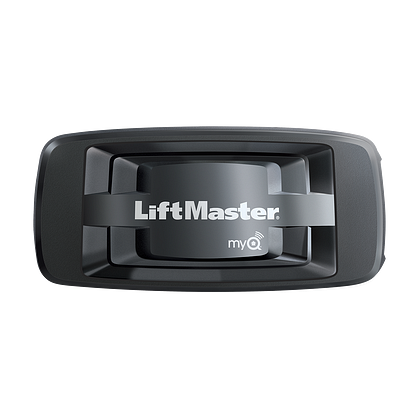
Internet Gateway (828LM)
If you have a Chamberlain or LiftMaster Wi-Fi garage door opener that has difficulty staying connected to your home network you can purchase an Internet Gateway (828LM). The internet gateway connects directly to a router with an Ethernet cable and transmits a signal that connects to myQ devices 300-600 ft. away. This option takes the place of the built-in Wi-Fi of your garage door opener.