
How to Factory Reset a myQ Device
A factory reset restores a myQ device to its original settings and prepares it for setup again. Use a factory reset only when directed by troubleshooting, transferring ownership, or resolving account association issues such as Error 310.
Before You Factory Reset
Factory Reset the Device If
✅ You are moving and leaving the device behind.
✅ You are taking ownership of a previously installed myQ device.
✅ You see Error 310 and the ownership article directs you to perform a reset.
✅ The device cannot be added after ownership transfer.
✅ A troubleshooting article or Technical Support directs you to perform a factory reset.
Do Not Factory Reset the Device If
❌ You changed your Wi-Fi password.
❌ You replaced your router.
❌ The device appears offline.
❌ You forgot your myQ password.
❌ You cannot sign in to your myQ account.
For those situations, use one of the articles below instead:
Error 310
When you see Error 310, it means your myQ serial number is already linked to another account. A myQ device can only be added to one account at a time.
Common causes include:
- The device was previously owned or installed
- You moved into a home with an existing myQ device
- You used a different email address to register the device
- You no longer have access to the previous myQ account
How to fix it: to clear the device from the old account, perform a factory reset using the steps below. This will remove the link to the previous account and allow you to register the device under your account.
For complete ownership-transfer guidance, see: myQ Device Ownership | Moving, Taking Ownership, and Error 310 Help
What Happens During a Factory Reset?
A factory reset removes all saved configuration information and prepares the device for setup again.
Depending on the product, a factory reset will:
- Remove the device from a myQ account
- Clear Wi-Fi settings
- Remove paired accessories
- Remove ownership information
- Require full setup in the myQ app
Wi-Fi Garage Door Opener Warning
Factory resetting a Wi-Fi garage door opener removes:
- Remote controls
- Wireless keypads
- HomeLink programming
- myQ accessories
These accessories must be reprogrammed after the opener is set up again.
Factory Reset Instructions
Select your device below for reset instructions. Performing these steps will also clear the device from any previous myQ account.
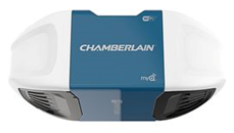 Wi-Fi Garage Door Opener
The opener itself, with Wi-Fi built in — no separate hub ⌄
Factory Reset Steps
Yellow & white LEARN button models
- Press and hold the yellow or white LEARN button — the LED light next to it will turn on.
- Continue to hold until the LED light turns off, then release.
- Immediately press and hold the button again, until the LED light turns off again.
- Immediately press and hold the button a third time, until the LED light turns off.
- You will hear three consecutive beeps indicating the reset was successful.
All other LEARN button colors
- Press and hold the LEARN button — the LED light next to the LEARN button will come on.
- Continue to hold until the LED light turns off, then release.
✅ What success looks like:
- Wi-Fi settings are removed
- Device removed from account
- Accessories no longer operate the opener until reprogrammed
If the reset does not work:
- Retry the reset steps slowly from the beginning
- Confirm the opener has power
- Confirm correct LEARN button
If the opener does not respond: unplug the opener for 30 seconds (disconnect battery backup power too, if your opener has one), then restore power and retry.
Next step: reconnect the opener in the myQ app. See Connect myQ Wi-Fi Garage Door Opener to Wi-Fi. Reprogram remotes, keypads, and HomeLink after setup is complete.
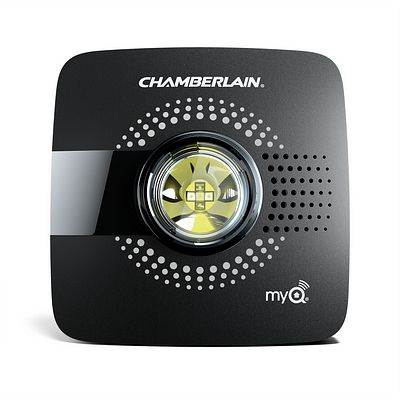
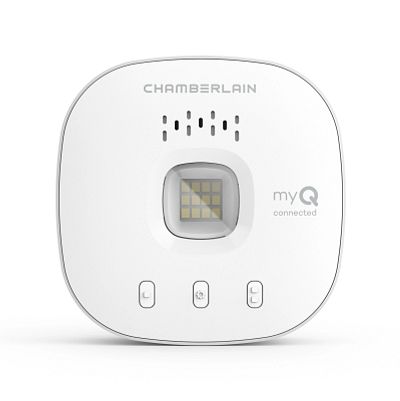 myQ Garage, Smart Garage Hub, or Smart Garage Control
Mounts a hub and door sensor in the garage, connects over Wi-Fi ⌄
Factory Reset Steps
- Press and hold the Settings button (gear icon) on the side of the hub until the blue LED blinks.
- Release the button.
- While the blue LED is blinking, press and hold the Settings button (gear icon) again until the blue LED pauses then blinks, or the hub beeps.
- Release the button.
✅ What success looks like:
- LED changes or hub beeps
- Wi-Fi settings are removed
- Device is removed from the current myQ account
If the reset does not work:
- Confirm the hub has power
- Retry the steps once
- Ensure you are pressing the Settings button, not the Test button
If the LED never changes, unplug the hub for 10 seconds, plug it back in, and retry.
Next step: set up the hub in the myQ app. See How to Connect a myQ Device to a Wi-Fi Network.
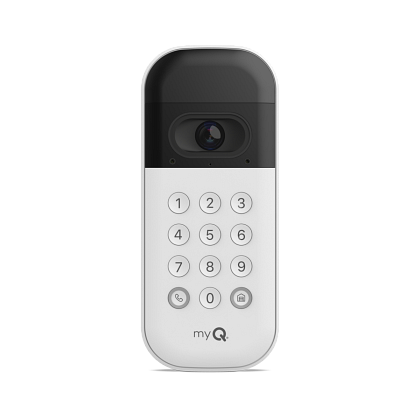 myQ Video Keypad
A wall-mounted keypad with a built-in camera, outside the garage ⌄
Factory Reset Steps
- Open the myQ app.
- Tap Settings ⚙ (gear icon) in the bottom-right corner.
- Tap Devices & automations.
- Locate your Video Keypad, tap the trash can icon, and tap Yes to confirm you intend to delete it from the myQ app.
- On the Reset Your Device screen, follow the instructions to complete the factory reset process.
- This will require you to remove the Video Keypad from the wall to access the Factory Reset button on the back.
✅ What success looks like:
- LED behavior changes
- Device is ready to pair again
If the reset does not work:
- Confirm the battery is charged
- Remove and reinstall the battery
- Retry the reset
Next step: set up the video keypad again in the myQ app. See How to Set Up a myQ Video Keypad in the myQ App.
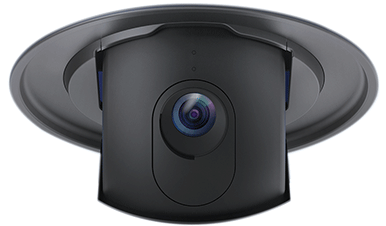 myQ Integrated Camera
A camera built into the garage door opener itself ⌄
Completing the steps below will remove the camera's Wi-Fi settings and disconnect it from the associated myQ account.
Factory Reset Steps
- Open the myQ Integrated Camera to expose the lens.
- Locate the reset button on the side of the camera.
- Press and hold the reset button for 5 seconds.
- Firmly hold the reset button down, and use a safety pin if needed.
- Wait for the blue LED above the lens to start flashing.
✅ What success looks like:
- Blue LED flashes above the camera lens
- Camera Wi-Fi settings are removed
- Camera disconnects from the previous myQ account
Next step: set up the camera again in the myQ app. See How to Set Up a Garage Door Opener with Integrated Camera in the myQ App.
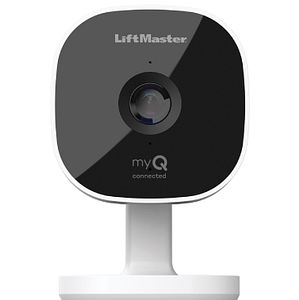 myQ Smart Cameras
A standalone camera, mounted separately from the opener ⌄
Completing the steps below will remove the camera's Wi-Fi settings and disconnect it from the associated myQ account.
Factory Reset Steps
- Open the myQ app.
- Tap Settings ⚙ (gear icon) in the bottom-right corner.
- Tap Devices & automations.
- Select the camera.
- Tap the trash can icon and confirm removal.
- Locate the pinhole near the side of the camera.
- With a safety pin or paper clip, press and hold the reset button on the side of the camera for at least 10 seconds.
- After releasing the reset button, you will see a white LED followed by a flashing blue LED above the camera lens, confirming the reset.
✅ What success looks like:
- LED turns solid white
- LED changes to flashing blue
- Camera is ready for setup again
If the app cannot find the camera afterward, restart Bluetooth on the phone and retry setup near the router.
Next step: set up the camera again in the myQ app. See How to Set Up the myQ Smart Garage Camera in the myQ App.
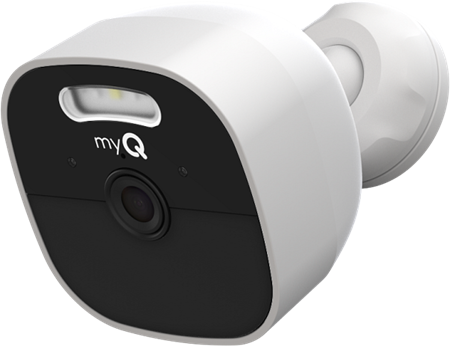 myQ Outdoor Battery Camera
A battery-powered standalone outdoor camera ⌄
Battery-powered outdoor security camera that connects to the myQ app.
Models: myQ-C39VXXW, myQ-C39VCXW
Factory Reset Steps
- Open the myQ app.
- Tap Settings ⚙ (gear icon) in the bottom-right corner.
- Tap Devices & automations.
- Select the camera, tap the trash can icon, and confirm removal.
- Press and hold the reset button on the bottom of the camera until the LED turns solid red.
- After releasing the reset button, you will see a solid white LED followed by a blinking blue LED above the lens, indicating the reset was successful.
✅ What success looks like:
- LED changes from solid white to blinking blue
- Camera is ready for setup again
Next step: set up the camera again in the myQ app. See myQ Outdoor Battery Camera | How to Set Up.
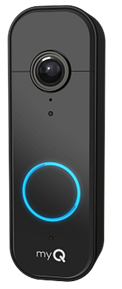 myQ Video Doorbell
A doorbell camera at an entry door, not the garage ⌄
Smart doorbell camera that provides video monitoring and visitor notifications.
Factory Reset Steps
- Open the myQ app.
- Tap Settings ⚙ (gear icon) in the bottom-right corner.
- Tap Devices & automations.
- Select the doorbell, tap the trash can icon, and confirm removal.
- Remove the doorbell from the mounting bracket:
- Using a Phillips #1 screwdriver, remove the security screw located at the bottom of the doorbell mounting frame.
- Push up from the bottom of the doorbell and firmly pull up and out toward you to detach it.
- Reset the doorbell:
- Press and hold the reset button on the back of the doorbell until the LED turns solid red.
After releasing the reset button, you will see a solid white LED followed by a blinking blue LED above the lens, indicating the reset was successful.
✅ What success looks like:
- LED changes from solid white to blinking blue
- Doorbell is ready for setup again
If the reset does not work:
- Confirm the doorbell has power
Next step: set up the video doorbell again in the myQ app. See How to Set Up a myQ Video Doorbell.
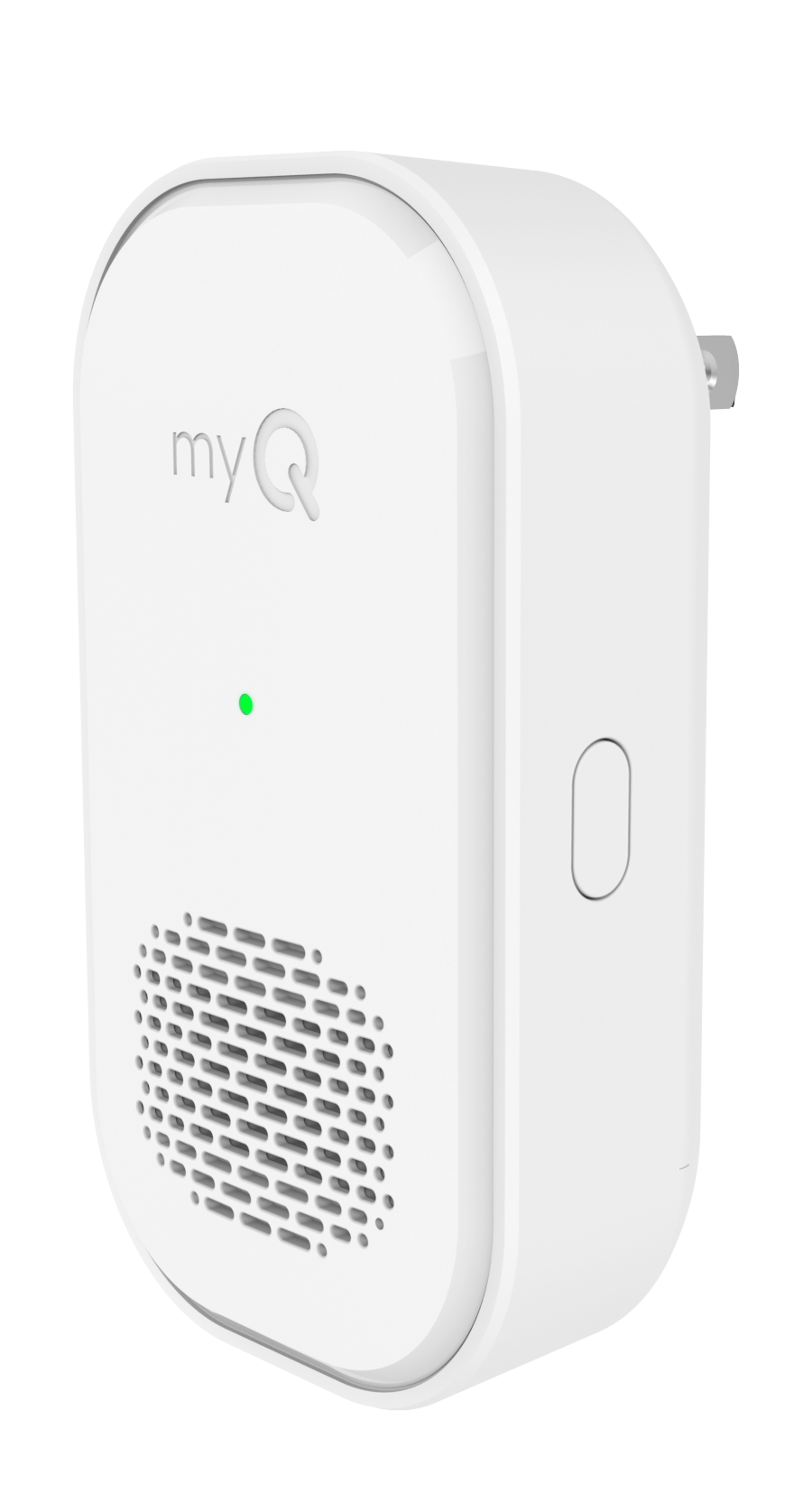 myQ Wireless Chime
A plug-in chime that pairs with the myQ Video Doorbell ⌄
Accessory chime that plays an audible alert when the Video Doorbell is pressed.
Models: MYQ-W11AXXW
Factory Reset Steps
- Open the myQ app.
- Tap Settings ⚙ (gear icon) in the bottom-right corner.
- Tap Devices & automations.
- Select the chime, tap the trash can icon, and confirm removal.
- Press and hold the reset button on the side of the chime until the LED turns solid red.
- Release the button. You will see a solid white LED followed by a blinking blue LED, indicating the reset was successful.
✅ What success looks like:
- LED changes from solid white to blinking blue
- Chime is ready for setup again
Next step: set up the Wireless Chime again in the myQ app. See myQ Wireless Chime | Setup, Features, and Settings.
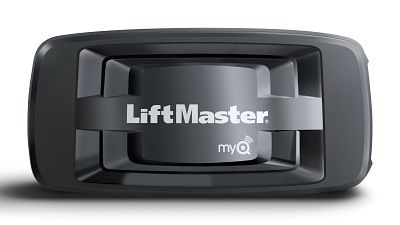 Internet Gateway
Connects to your router with an Ethernet cable, not in the garage ⌄
myQ device that connects myQ garage door openers to the internet using an Ethernet cable.
Factory Reset Steps
- Unplug the AC adapter from the gateway.
- With a safety pin or paper clip, press and hold the reset button on the side of the gateway.
- While holding the reset button, plug the AC adapter back in.
- Keep holding down the reset button until the yellow LED light blinks.
- Release the button.
✅ What success looks like:
- Yellow LED blinks
- Device is removed from the previous myQ account
Next step: set up the gateway again in the myQ app. See How to Set Up an Internet Gateway in the myQ App.
After Any Reset (Important)
If setup fails after reset:
- Restart your phone
- Confirm Bluetooth is enabled
- Confirm 2.4 GHz Wi-Fi
- Move closer to the device and router
- Retry setup once
Additional Resources


