
Smart Garage Hub | Add a Second Door Sensor
You can control a second garage door with your myQ app by adding another door sensor to your Smart Garage Hub or Smart Garage Control. Follow the steps below to pair and install the second sensor.
How to Add a Second Door Sensor Using the myQ App
Step 1: Add the Door Sensor
- Open the myQ app.
- Tap the Gear Icon in the top right to access settings.
- Tap Devices.
- Tap Add a new device.
- Tap Smart Garage Hub.
- Tap Door Sensor.
- Choose the Smart Garage Hub you are pairing the second sensor to (door sensor must be online).
- Remove the tab from the new door sensor and tap Next.
- Note: The tab will be located in the upper left corner of the door sensor. If it's missing, it has already been removed.
- Test the door sensor by pressing the button as indicated in the app, then tap Next.
Step 2: Pair the Door Sensor
- Follow the steps in the app to pair the door sensor to your hub, then tap Next.
- Press and release the button on the door sensor.
- The Smart Garage Hub or Smart Garage Control will beep and flash.
- If it doesn't, troubleshoot the door sensor. See: How to Test the Door Sensor.
- Tap Next on the door sensor is paired screen.
Step 3: Install the Door Sensor
- Follow the in-app steps or watch the video to install the door sensor.
Step 4: Pair to the Garage Door Opener
- Tap Next on the Pair to the Motor screen.
- Read the warning and tap Next.
- Use a ladder to reach your garage door motor and tap Next.
- Select the brand of your garage door opener.
- Locate your learn/program button and tap Found It.
- If prompted, select the color of your learn/program button.
- Press and quickly release the learn/program button on your garage door opener motor head and tap Next.
- This will cause your garage door opener to move.
- When the opener is paired, tap Next.
Step 4: Finish Setup
- Name your garage door and tap Next.
- Mount the Smart Garage Hub or Smart Garage Control.
- Tap Next aftr each step.
- If your hub is already installed, continue to tap Next.
- Tap Finish when you have successfully installed the hub.
- Tap the garage door in the app to activate the door.
Troubleshooting
- If both garrage doors open at the same time when activiation one door in the app: See How to resolve issues with the MyQ App opening and closing multiple garage doors at the same time
- If you need to add a second Smart Garage Hub or Smart Garage Control to your myQ account: See How to connect the myQ Smart Garage Hub to a home Wi-Fi network.
Compatible Door Sensors
For Smart Garage Hub
The following sensors are discontinued:
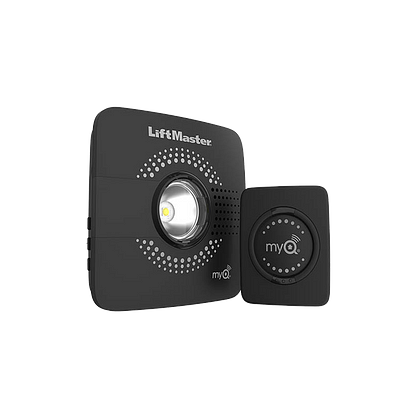
- The LiftMaster Door Sensor (G821LMB-2SENSOR)
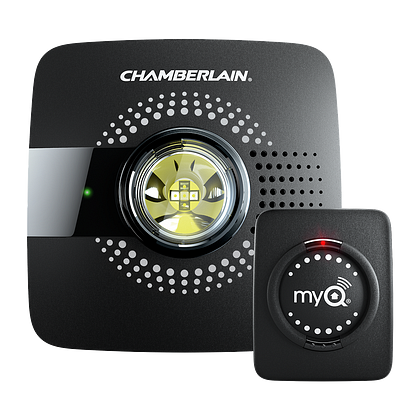
- Chamberlain Door Sensor (myQ-G0302)
For replacements, use:
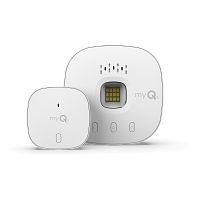
- Chamberlain MYQ-G0402 Door Sensor (Available at Chamberlain.com)
For Smart Garage Control
The following sensor is only available through a LiftMaster Dealer:
For replacements use:
- Chamberlain MYQ-G0402 Door Sensor (Available at Chamberlain.com.

Find Help By Product 

View More Brands

