
myQ App | Low Battery Warning for Smart Garage Hub Door Sensor
The myQ app displays a Low Battery warning when the battery in the door sensor for your myQ Smart Garage Control, Smart Garage Hub, or myQ Garage needs attention. Replace the CR2450 battery, then run 2 full open and close cycles using the wall control. If the warning remains, remove the battery for 10 minutes and reinstall it. If necessary, delete the sensor from the myQ app and pair it again.
This guide explains how to fix the warning, including when it does not go away.
What Does This Alert Mean?
ⓘ About the myQ Smart Garage Hub
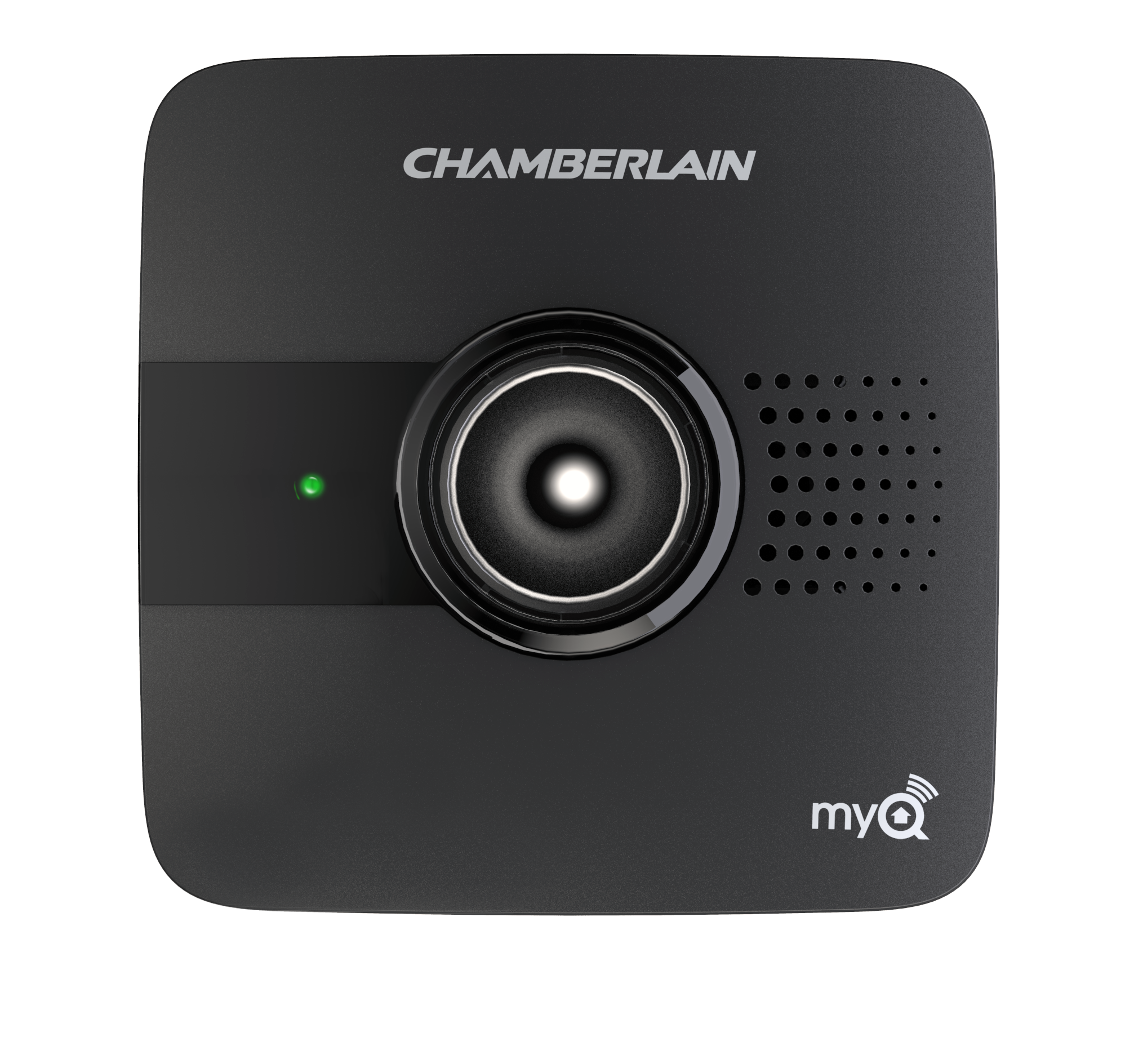
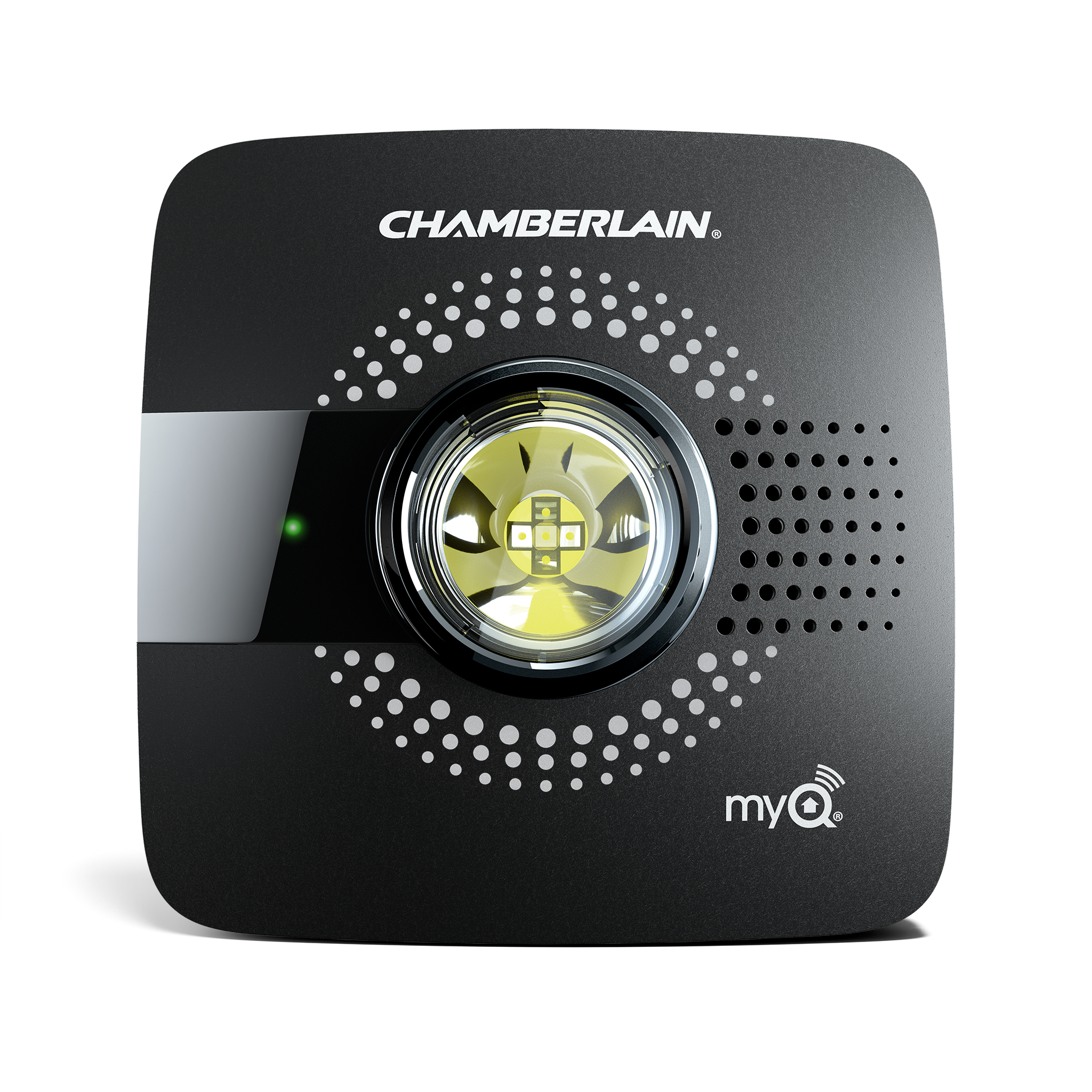
The myQ Smart Garage Hub is a device that connects your garage door opener to the internet, allowing you to open, close, and monitor your garage door remotely through the myQ app. It is usually mounted inside your garage near the door and motor unit and is plugged into an outlet.
ⓘ About the door sensor
The door sensor is mounted on the top panel of the garage door and reports whether the door is open or closed. It uses a CR2450 3V lithium battery.
Common Causes of a Low Battery Warning
- The battery is low
- The battery is installed incorrectly
- The sensor is not communicating correctly
- The battery was recently replaced, and the app has not updated
Cold weather can temporarily reduce battery voltage and cause the warning to appear before the battery is fully depleted.
The CR2450 battery typically lasts 1 to 2 years.
How to Replace the Battery in the Door Sensor
- Locate and remove the sensor: The door sensor is usually mounted on the top panel inside your garage door.
- Most sensors are attached with Velcro. Pull the sensor off the door.
- Some sensors attach to a mounting base. Use a coin or screwdriver to gently pop the sensor off the base.
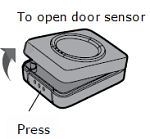
- Open the sensor: Press the release tab at the bottom or gently pry the sensor open.
- Remove the old battery: Slide the battery out carefully. Do not use sharp objects, which may damage the sensor.
- Insert a new battery: Install a new CR2450 3V lithium battery with the positive (+) side facing up.
- Close the sensor cover: Snap it securely back into place.
- Test the sensor: Press the button on the sensor. The LED light should flash, and the hub should beep.
- Clear the warning. Use the wall control inside the garage to complete 2 full open and close cycles.
The wall control is the button mounted inside the garage that opens and closes the door.ⓘ What is the Wall Control?
✅ What Success Looks Like
- Sensor LED flashes when tested
- Low battery alert disappears
- Door operates normally in the app
Why Didn't the Low Battery Warning Disappear?
If the warning remains after replacing the battery follow the steps below:
Step 1: Complete Additional Door Cycles
Use the wall control to complete up to 6 full open and close cycles.
Check the app after each cycle.
Step 2: Reset the Sensor
- Remove the battery from the sensor.
- Wait 10 minutes.
- Reinstall the battery.
- Press the test button.
The LED should flash and the hub should beep.
Step 3: Remove the Sensor from the App and Re-Pair
To Remove:
- Open the myQ app.
- Tap the gear icon.
- Tap Devices.
- Under HUBS, tap the name of your hub.
- Tap Sensor.
- Tap Remove Device.
To Pair Again:
- Open the hub settings.
- Tap Add New.
- Tap Door Sensor.
- Follow the instructions in the app to complete setup.
- Test operation.
✅What Success Looks Like
- The Low Battery warning disappears
- Door status updates correctly
- Sensor responds normally
If This Does Not Work
The sensor may not be communicating correctly or may be failing internally.
If the Low Battery warning remains after re-pairing the sensor, use the test procedure to determine whether the sensor or battery needs to be replaced.
👉 See: myQ Door Sensor | Test for a Low Battery or Communication Issue
Video Guides
- How to Test and Replace the Battery in Your myQ Smart Garage Control Door Sensor
- How to Test and Replace the Battery in Your Chamberlain Smart Garage Hub Door Sensor


