
Smart Garage Hub | Unable to Connect to Wi-Fi and LED Light is Solid Blue
This guide will help you troubleshoot situations where your Smart Garage Hub or Smart Garage Control won’t connect to Wi-Fi and the LED is solid blue.
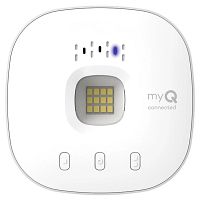
When the hub is powered and working normally, the LED will go through a series of blinks before turning solid green to confirm a successful Wi-Fi connection. A solid blue LED means the hub is connected to your mobile device, but not yet to your home network.
Before You Begin
- Ensure your mobile device is close to your myQ hub.
- A ladder may be required to reach the hub.
- Ensure you have your home Wi-Fi network password.
- Ensure you have a strong 2.4GHz Wi-Fi network signal in the garage.
Troubleshooting Steps if the LED is Solid Blue
-
Check for Error Codes
- If the app provided an error code during the attempt to connect the myQ hub, see: myQ Error Codes and How to Resolve Them.
-
Confirm you have a strong Wi-Fi Signal
- Make sure your mobile device is connected to the correct Wi-Fi network.
- Hold your mobile device where the myQ hub will be installed and check your Wi-Fi strength.
- If the Wi-Fi signal is weak, see: Improve myQ Device Wi-Fi Signal Strength.
-
Restart the myQ Hub
- Unplug and reconnect the power to the myQ hub.
- The LED should start blinking blue signaling a restart. See How to Connect a myQ Device to a Wi-Fi Network.
- If the LED status does not blink blue, continue to step 4.
-
Reset the myQ Hub
- Press and hold down the gear button until the LED blinks blue.
-
Adjust Mobile Device Settings
- Some settings may interfere with the connection.
- For the myQ Garage or Smart Garage Hub you will need to disable features in your mobile device settings that automatically switch between Wi-Fi and mobile data, as well as manages network privacy.
For Apple Devices - Turn off Wi-Fi Assist and Private Relay in your phone settings. Both can be turned back on after being connected.
-
-
- To Turn off Wi-Fi Assist:
-
-
-
-
- Open the Settings app on your Apple device.
- Select Cellular.
- Scroll to the bottom of the screen and disable Wi-Fi Assist.
-
-
-
-
- Turn off Private Relay:
-
-
-
-
- Go to Settings.
- Tap your name.
- Tap iCloud.
- Turn off Private Relay.
-
-
-
-
- Once these settings are disabled, continue to step 6.
-
For Android Devices- Turn off Mobile Data/Smart Network Switch. This can be turned back on after connection.
-
-
- To Turn off Smart Network Switch/Switch to Mobile Data:
-
-
-
-
- Go to Settings.
- Select Wi-Fi.
- Depending on your Android, select More or Advanced.
- Disable Smart Network Switch or Switch to Mobile Data.
-
-
-
-
- Once this setting is disabled, continue to step 6.
-
-
Complete Setup in the myQ App
- Follow the in-app setup steps to connect your myQ hub.
- Keep your mobile device near your myQ device.
- See Smart Garage Hub | How to Set Up in the myQ App & Connect to Wi-Fi for detailed instructions.
Additional Troubleshooting
-
If you see an error in the app or if the LED light blinks another color, go to the matching guide in the chart listed here:
Smart Garage Hub | Device Shows Offline or Unable to Connect to Wi-Fi
Video Guide


