
myQ Smart Garage Camera | No LED Light, Unable to Connect to Wi-Fi
Quick Answer: If the camera has no LED, it is not receiving power. Unplug the camera and plug it back in. If the LED still does not turn on, confirm the outlet has power, then contact Residential Support.
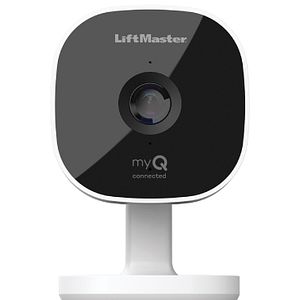
If your myQ Smart Garage Camera has no LED light, the camera is not receiving power. Power cycle the camera, then check the electrical outlet if the LED does not turn on.
Power Cycle the Camera
Disconnect and reconnect the camera from power, then allow the camera time to restart and reconnect.
- Disconnect the power cord from the camera.
- Disconnect the power cord from the outlet.
- Reconnect the power cord to the outlet.
- Reconnect the power cord to the camera.
- Allow the camera time to restart and reconnect.
- Check the LED.
Check the LED Status
After reconnecting power, allow the camera time to restart and reconnect. The camera is back online when the LED turns solid green.
If the camera was offline or disconnected from power for an extended period, it may need to be reset and set up again.
If the LED remains solid white and the camera does not come back online, see myQ Smart Garage Camera | Solid White LED, Unable to Connect to Wi-Fi
If the LED changes to any other color, see myQ Smart Garage Camera | Wi-Fi Troubleshooting Guide and follow the troubleshooting steps for the LED status shown.
If there is still no LED, continue troubleshooting.
Check the Outlet for Power
If the camera still has no LED, test the electrical outlet with another device to confirm the outlet has power.
- Disconnect the camera from the outlet.
- Plug another device into the same outlet.
- Check whether the other device turns on.
If the Outlet Does Not Have Power
If the test device does not turn on, connect the camera to an outlet that has power.
- Disconnect the test device.
- Connect the camera to a working outlet.
- Allow the camera time to restart and reconnect.
- Check the LED.
If the LED turns solid green, the camera is connected and back online.
If the LED changes to any other color, see myQ Smart Garage Camera | Wi-Fi Troubleshooting Guide and follow the troubleshooting steps for the LED status shown.
If there is still no LED, continue to the next section.
If the Outlet Has Power but the Camera Still Has No LED
If the outlet has power but the camera still has no LED, the camera may need to be replaced. Contact Residential Support for additional assistance.


