
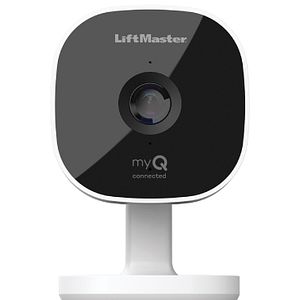
myQ Smart Garage Camera | Wi-Fi Troubleshooting Guide
Quick Answer:
Use This Guide If:
- The camera will not connect to Wi-Fi.
- The camera appears offline in the myQ app.
- Camera setup stops before it finishes.
- The camera LED is flashing or displaying an unexpected color.
Use a Different Guide If:
- This is your first time setting up the camera. UsemyQ Smart Garage Camera | Set Up in the myQ App.
- The camera was working previously and you recently changed your Wi-Fi network name, password, or router. Use myQ Device Offline After Wi-Fi or Router Change | How to Reconnect.
Before You Begin
- Check whether the myQ app displays an error code. If so, see myQ Error Codes and How to Resolve Them.
- Make sure you have your home Wi-Fi network password.
- Make sure your phone is connected to your home Wi-Fi network and Bluetooth is enabled.
- Make sure your camera meets the Wi-Fi network requirements. For supported Wi-Fi networks, router settings, and mesh network recommendations, see myQ Cameras | Wi-Fi Network Requirements and Recommended Router Settings.
Camera Was Previously Working but Is Now Offline
- Unplug the camera for 10 seconds, then plug it back in.
- Restart your router.
- Wait 3 to 5 minutes for the camera to reconnect.
- Check the LED status.
Troubleshoot by LED Status
 No LED: The camera does not have power
Unplug the myQ Smart Garage Camera for 10 seconds, then plug it back in. Make sure the outlet it's plugged into has power.
If there's still no LED, see myQ Smart Garage Camera | No LED Light, Unable to Connect to Wi-Fi.
 Solid White: Camera is powering up
Wait up to 40 seconds for the camera to finish powering up. The LED will begin to flash blue once it's ready for setup.
If the light is still solid white, see myQ Smart Garage Camera | Solid White LED, Unable to Connect to Wi-Fi.
 Flashing Blue: Camera is ready to connect to Wi-Fi
Run the in-app setup process keeping your phone close to the camera and double-checking your Wi-Fi password.
If the light is still flashing blue, see myQ Smart Garage Camera | Flashing Blue LED, Unable to Connect to Wi-Fi
 Solid Blue: Unable to connect to your mobile device
Confirm you have a strong Wi-Fi signal, forget the camera in your phone's Bluetooth settings, then unplug the camera for 10 seconds and plug it back in.
If the light is still solid blue, see myQ Smart Garage Camera | Solid Blue LED, Unable to Connect to Wi-Fi
 Flashing Blue and Green: Unable to connect to your home Wi-Fi router
Confirm your Wi-Fi signal is strong, unplug the camera for 10 seconds and plug it back in, and restart your router if it's still flashing blue and green.
If the light is still flashing blue and green, see myQ Smart Garage Camera | Flashing Blue and Green LED, Unable to Connect to Wi-Fi
 Flashing Green: Unable to connect to myQ internet server
Unplug the camera for 10 seconds, then plug it back in. Restart your router if it's still flashing green.
If the light is still flashing green, see myQ Smart Garage Camera | Flashing Green LED, Unable to Connect to Wi-Fi
 Solid Green: Connected to myQ server, but device not added to myQ account
Check that you're signed into the correct myQ account, then reset and set up the camera again if it still doesn't appear.
For account checks and how to restart setup, see myQ Smart Garage Camera | Solid Green LED, Unable to Connect to Wi-Fi
 Flashing Purple: Camera is updating firmware
Wait up to 10 minutes for the firmware update to finish, then unplug the camera for 10 seconds and plug it back in if it's still flashing purple.
If the light is still flashing purple after you unplug and replug the camera, see myQ Smart Garage Camera | Flashing Purple LED, Unable to Connect to Wi-Fi
 Flashing Red: Camera is overheating and in protection mode
Wait for the camera to cool down to operational temperature. The LED will return to its original state once it's out of Overheat Protection Mode.
If the camera doesn't come back online after cooling down, see myQ Smart Garage Camera | Flashing Red LED, Unable to Connect to Wi-Fi
Tips to Improve Wi-Fi Signal Strength
A weak Wi-Fi signal is one of the most common causes of connection issues. Try the following:
- Confirm the camera meets the Wi-Fi requirements and check for error codes, as described in Before You Begin.
- Move the router closer to the camera or the camera closer to the router.
- Reduce interference from metal objects and large appliances.
Still Need Help?
If the camera is still offline after these steps, contact Residential Support.


