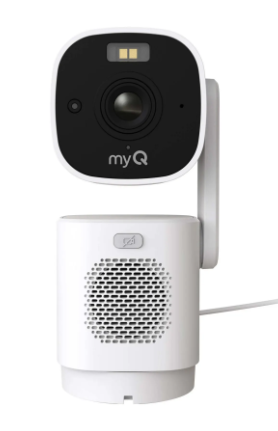
Use the myQ app to customize how your PTZ (Pan/Tilt/Zoom )Camera detects activity, records events, patrols your property, and responds to motion.
Before You Begin
Make sure your camera is connected in the myQ app and installed in its permanent location. If you haven't set up your camera yet, see PTZ Camera | How to Set Up
Set your Home View from the live stream first. This view becomes the anchor point for Patrol Mode.
Notifications
Notifications alert you whenever there's activity around your camera. Create and fine-tune them in the app.
See How to Create and Manage myQ Account Notifications for step-by-step help.
Detection and Recording
Video storage requires a myQ Video Monitoring Subscription. Recordings begin after the subscription becomes active.
Video Recording saves event clips for as long as your plan allows, so you can always look back at what happened. Toggle it on to start.
Face Detection matches the faces in your camera's view against the ones you've scanned into your account, so you know when someone familiar shows up.
See myQ Face Detection to set it up.
Detection Zones let you focus on just the parts of your Home View that matter, for fewer and more relevant alerts.
See How to Create, Manage and Delete myQ Detection Zones to set your own.
Auto-Tracking
Auto-Tracking follows selected moving objects that enter the camera’s field of view. Supported object types may include people, vehicles, animals, and packages.
When the camera begins tracking an object, Auto-Tracking appears in the Live View.
If the object leaves the camera’s field of view:
Patrol Mode Settings
Patrol Mode continuously moves the camera between saved views. Create at least two saved views before turning it on.
When Patrol Mode is active, Patrolling appears in the bottom-left corner of the Live View.
Use Patrol Mode With Auto-Tracking
Auto-Tracking takes priority when both features are turned on.
When the camera detects a selected object, it stops patrolling and follows the object. After the object leaves the field of view, the camera returns to Patrol Mode when no other selected objects are detected.
Change View Duration
View Duration controls how long the camera remains at each saved view before moving to the next view.
Select the preferred duration in the camera’s Patrol settings.
Create a Patrol Schedule
A Patrol schedule controls the days and times Patrol Mode operates.
Create each schedule with a separate start and end time. Patrol schedules cannot overlap.
Video Settings
Video settings control camera privacy, low-light viewing, and image orientation.
Sleep Mode
Sleep Mode powers down the camera and tilts it toward its base for privacy.
Sleep Schedules
Sleep Schedules automatically place the camera in Sleep Mode on selected days and times.
Night Vision
Night Vision changes how the camera displays video in low light.
Available options are:
- Color Night Vision
- Black and White
- Off
Video Orientation
Video Orientation rotates the image 180 degrees. Use this setting if the camera is mounted upside down.
Audio Settings
Audio settings control the camera microphone, speaker volume, and siren volume.
Camera Microphone
Turn on the Camera Microphone to hear audio during Live View and include audio in supported recordings.
Speaker and Siren Volume
Speaker Volume and Siren Volume control how loudly the camera plays audio.
Use Test Volume to preview the siren. The siren can only be activated manually in the myQ app.
⚠️ Warning: The volume test plays at full volume. Step back and warn anyone nearby before you tap it.
Installation and Setup
Open Installation and Setup in the camera settings to view the installation guide or start recalibration.
Recalibrate the camera after moving it to a different location. Recalibration helps the camera establish the correct movement range and Home View at its new location.
Status Light
Status Light turns off the LED on the camera for a more discreet look. This only hides the light. Your camera keeps working as usual.



