
How to Create a Master Entry Code on Your Yale | LiftMaster Smart Lock
Upon installation or after resetting the Smart Lock to factory default, a Master Entry Code must be created. Programming and use of the lock will not be possible until this step has been successfully completed.
Steps to Create a Master Entry Code on the Yale | LiftMaster Smart Touchscreen Deadbolt
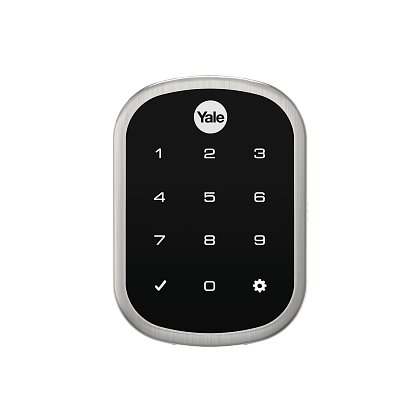
- Touch the lock's screen with your palm or the back of your hand to activate
- Press the gear icon
- Enter a 4-8 digit Master Entry Code followed by the gear icon
A Master Entry Code has been successfully created for your Smart Touchscreen Deadbolt.
Instructions for Creating a Master Entry Code on the Yale | LiftMaster Smart Keypad Lever
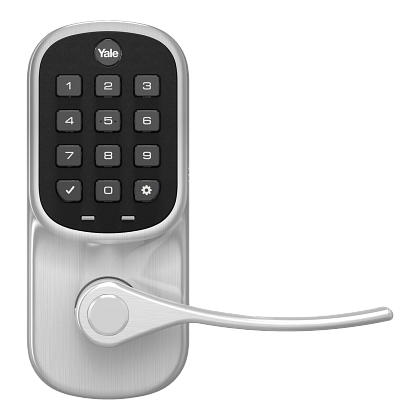
- Wake up the lock by pressing the gear button
- Press 1, then press the gear button
- Enter a 4-8 digit Master Entry Code, then press the gear button
You have successfully created a Master Entry Code for your Smart Keypad Lever lock.

Find Help By Product 

View More Brands

